![logo-blue copy 2.png]](https://help.nozzle.io/hs-fs/hubfs/logo-blue%20copy%202.png?height=33&name=logo-blue%20copy%202.png)
STEP 1:
You'll need to know your Workspace and Project slug to access your data in BigQuery,.
Then, contact Nozzle (either through the contact form or using the support chat within the app) and request access to BigQuery.
- Provide individual user and/or service account emails, and we will grant access to specific projects within your workspace
- Create a Google Group in your own Google Workspace account, and provide us that group email address. We can grant BigQuery access to that group on our side, and you can manage the membership of that group on your end, so you don't have to ask us to grant access to new users or service accounts.
STEP 2:
Then, to see your dataset in BigQuery, modify the following URL by changing WORKSPACESLUG and PROJECTSLUG to your Nozzle workspace slug and project slug.
https://console.cloud.google.com/bigquery?&ws=!1m10!1m4!4m3!1snozzledata!2sWORKSPACESLUG_PROJECTSLUG!3slatest_keywords_by_keyword_id!1m4!4m3!1snozzledata!2sWORKSPACESLUG_PROJECTSLUG!3srankings
If your workspace slug is "realtor" and your project slug is "newsandinsight" then the url will look like this:
https://console.cloud.google.com/bigquery?&ws=!1m10!1m4!4m3!1snozzledata!2srealtor_newsandinsight!3slatest_keywords_by_keyword_id!1m4!4m3!1snozzledata!2srealtor_newsandinsight!3srankings
STEP 3:
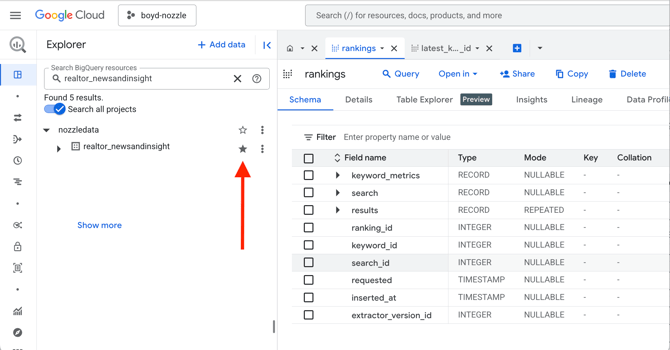
Once you go to this URL, it may take a minute for your dataset to populate in the left panel underneath "nozzledata" so be patient.
When it appears, we recommend that you star the project so that you can find it easily in the future by just searching in the "Search BigQuery resources" field in the left panel.