![logo-blue copy 2.png]](https://help.nozzle.io/hs-fs/hubfs/logo-blue%20copy%202.png?height=33&name=logo-blue%20copy%202.png)
If you've ever wanted to pull Nozzle data into a script, a notebook, or a one-off cURL command in your terminal, Copy cURL is the fastest way to get there. It copies a ready-to-paste terminal command that makes the exact same API call powering the widget you're looking at — filters, time range, authentication and all. Paste it into a terminal, get raw JSON back, and go.
Where to find Copy cURL
Every chart and table on the Performance dashboards now has a widget menu (⋮) in the top-right corner. Click it and you'll see:
- Show Change — toggle the chart to show change vs. the first date in your range
- Show Table / Maximize — expand the widget
- Export Data — download the widget's data as CSV
- Copy cURL — copy the API call as a terminal-ready cURL command
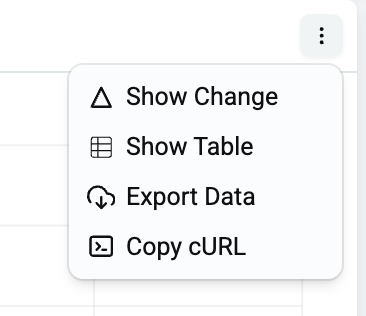
Click Copy cURL and the command is on your clipboard. Paste it into your terminal and hit enter — you'll get JSON back immediately.
Your first API call
Here's what a Copy cURL command looks like for a single-keyword SERP pull:
curl 'https://api.nozzle.app/serps?workspaceId=916778083834894&rankingId=2943453653' \
  -H 'accept: application/json, text/plain, */*' \
  -H 'authorization: {api details}'
Paste it, run it, and you'll get back the full JSON for that SERP pull — every result Nozzle captured, every metric, every SERP feature.
Want the raw HTML snapshot instead?
Change the endpoint from /serps to /serps/html:
curl 'https://api.nozzle.app/serps/html?workspaceId=916778083834894&rankingId=2943453653' \
  -H 'accept: application/json, text/plain, */*' \
  -H 'authorization: {api details}'
That returns the actual rendered HTML of the SERP Nozzle captured — the same HTML that powers Nozzle Vision.
From one-off to scripted: using keywordId + requested
Copy cURL bakes in a rankingId, which is specific to a single SERP pull. Great for grabbing data you're looking at right now. Not great for scripts, because every new SERP pull generates a new rankingId.
For programmatic usage, swap rankingId for the combination of keywordId and requested (the date you want). Both stay stable across pulls, so you can loop over dates or keywords without chasing ID changes.
Where to find keywordId
Your keywordId is stable — it's assigned once when you add the keyword, and it's tied to the keyword phrase, engine, device, and location combination. A few places you'll see it:
- In the URL when you're on the Single Keyword dashboard:
&keywordId=281430275 - In the JSON response from any
/serpsAPI call - In Nozzle's BigQuery dataset
The requested parameter
requested is a date in RFC3339 format. That means the full ISO 8601 datetime with a timezone offset. Examples that work:
2026-02-03T00:00:00Z
2026-02-03T00:00:00+00:00
2026-02-03T14:30:00-07:00
A quick heads-up on the time portion: if you didn't schedule your SERPs to run at a specific time, they run at 00:00:00 UTC. So for most users, 2026-02-03T00:00:00Z is the right shape.
Putting it together
Instead of this (one snapshot, not script-friendly):
curl 'https://api.nozzle.app/serps?workspaceId=916778083834894&rankingId=2943453653' \
  -H 'authorization: {api details}'
Use this (stable parameters, perfect for scripts):
curl 'https://api.nozzle.app/serps?workspaceId=916778083834894&keywordId=281430275&requested=2026-02-03T00:00:00Z' \
  -H 'authorization: {api details}'
Now you can loop over dates, keywords, or both.
Finding your workspaceId
Your workspaceId is in the URL of any Nozzle page you're on. Look for &workspaceId= in the browser address bar. It's the same across every dashboard, so you only need to grab it once.
Authentication
The {api details} placeholder in the Copy cURL output is the one thing you don't want to paste into a public doc or a shared chat. When you use Copy cURL from the app, your current session's auth is included automatically — so pasting into your own terminal just works.
For long-running scripts or integrations, you'll want a proper API token rather than a session token. If you don't already have one, see How do I create an API token? — you can create one yourself from Settings → Users.
A few rules of the road:
- Don't paste cURL commands with auth headers into shared docs, Slack channels, or GitHub issues
- Rotate tokens if you think one has been exposed
- Treat API auth the same way you'd treat a password
Common patterns
A few things people tend to reach for once they've got the API wired up:
Pull the same keyword across a date range — loop over dates and call /serps with keywordId + requested for each day.
Pull today's SERP for a list of keywords — loop over keywordId values with today's date as requested.
Grab the HTML for visual diffing — hit /serps/html on two different requested dates for the same keywordId and compare.
Feed data into a notebook or BI tool — parse the JSON response and hand it off to pandas, R, or whatever you prefer. (If you're doing this at scale, BigQuery is almost always the better move — see the BigQuery docs.)
When to use Copy cURL vs. BigQuery vs. Export
- Copy cURL — you want raw JSON for one widget, or you're prototyping a script
- Export Data (CSV) — you want to hand data to someone in a spreadsheet
- BigQuery — you're running analysis across lots of keywords, lots of dates, or joining with other data sources
All three pull from the same underlying Nozzle data. Pick whichever fits the job.
Need help?
If you hit something weird — a field you can't find, a script that's not returning what you expect, a use case you're trying to figure out — open a ticket or ping us in chat. We're happy to dig in, especially for the gnarlier data-junkie stuff.