![logo-blue copy 2.png]](https://help.nozzle.io/hs-fs/hubfs/logo-blue%20copy%202.png?height=33&name=logo-blue%20copy%202.png)
Keyword groups are a many-to-many tag, so any single keyword can belong to a dozen groups at once — some you created, some Nozzle created for you. This guide shows you how to see the complete list for one keyword, and how to get that list into a spreadsheet.
If you want to change a keyword's groups rather than just look at them, see How do I create and edit keyword groups? instead.
See a keyword's groups on the Keywords dashboard
- Open your Project and go to the Keywords dashboard.
- In the Filter Keywords bar, search for the keyword you're interested in and select it. You can select more than one at a time.
- Scroll down to the Keywords table at the bottom of the page.
- Look at the Keyword Groups column on the far right. It shows a count rather than the names — something like
8 Keyword Groups. - Hover over that count. A tooltip opens listing every group the keyword belongs to, alphabetized.
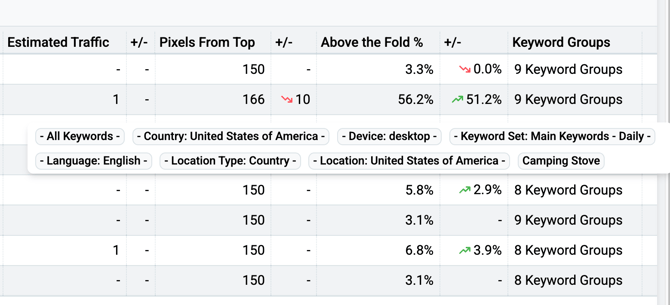
That tooltip is the answer to "what groups is this keyword in?" — it's the full membership list, not a partial one.
What the group names mean
The list mixes three different kinds of groups together. They're easy to tell apart once you know what you're looking at:
| What you see | Where it came from |
|---|---|
- All Keywords -, - Device: desktop -, - Language: English -, - Location: United States of America - |
Built-in groups. Nozzle creates these automatically — most describe how the keyword is configured, and a few describe its place in the project. They're always wrapped in a leading - and a trailing -, which is how you spot them at a glance. |
- Keyword Set: Core Brand Terms - |
Keyword sets, surfaced as groups. You get one of these per keyword set the phrase is tracked in. A phrase that lives in three keyword sets shows three of these. |
running shoes, trail, competitor terms |
Custom groups. The ones you created in the Keyword Manager. No wrapper dashes. |
Two built-in groups describe the keyword's place in the project rather than its configuration, and they're worth recognizing when they turn up:
- All Keywords -— every keyword in the project. This is a real group, not a "no filter" placeholder, which is why it appears in the list.- Not Grouped -— the keyword isn't in any of your custom groups yet. It still belongs to the built-in groups and its keyword set; it just hasn't been tagged with one of your own. In the Keyword Manager this same group is labelled (No Group).
Every one of these is selectable in the Keyword Group dropdown at the top of any dashboard, so anything you see in the tooltip is something you can filter a whole dashboard down to. - Not Grouped - is a genuinely useful one to filter on — it's the fastest way to find keywords that slipped through your tagging.
Get a copyable list
Hovering is great for a quick look, but you can't copy out of a tooltip. For a list you can paste into a spreadsheet:
- With the Keywords table still filtered to your keyword, click the three-dot menu (⋮) at the top left of the table.
- Choose Copy as Excel. (Copy as CSV and Copy as JSON are there too — Excel is the friendliest for pasting straight into Google Sheets or Excel.)
- Paste into your spreadsheet.
The Keyword Groups column comes through as every group name, alphabetized and separated by semicolons in a single cell. Nothing is truncated the way it can be in a tooltip, so this is also the reliable way to compare one keyword's groups against another's.
Semicolons rather than commas, because group names can contain commas of their own — - Location: Reno,Nevada, United States of America - is a perfectly normal built-in group name. So splitting the cell on ; gives you one clean group name per piece. It's also the same separator you use to assign groups when pasting phrases into the Keyword Manager, so the two line up.
If you'd rather have a native array than split a string, Copy as JSON returns the groups as one.
Need help?
If a keyword shows up in a group you didn't expect — or is missing from one you did — reach out with the project name and the keyword, and we'll take a look. We'd rather hear about it than have you stuck.